


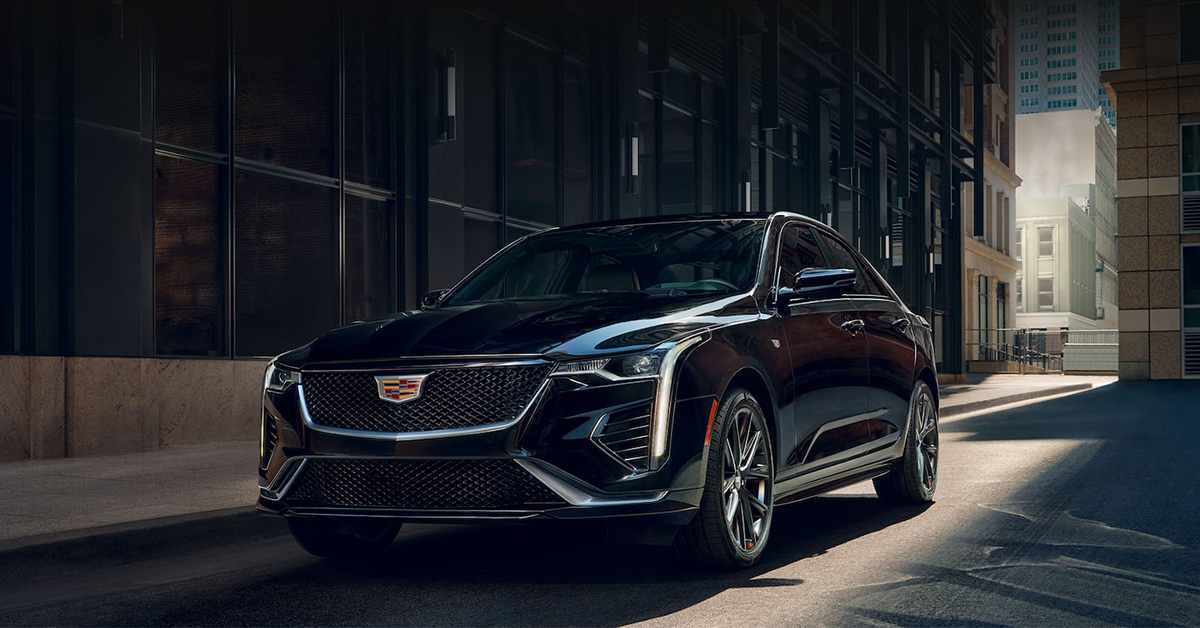
Imagine stepping into a perfectly warmed or cooled Cadillac without ever leaving your home—thanks to the myCadillac app, it’s easier than ever. With just a few taps on your smartphone, you can remotely start your CT5, XT5, or Optiq, ensuring your ride is comfortable before you even open the door. Whether you’re facing the summer heat in Lake Wales or the chilly mornings in Highland Park, the myCadillac app remote start makes every drive effortless.
Read more: How to Remotely Start Your Cadillac with the myCadillac AppIn this guide, we’ll walk you through how to set up and use the myCadillac app for remote start, explore other handy features, and troubleshoot common issues. If you’re looking for a Cadillac that keeps up with your lifestyle, visit Huston Cadillac—our team is here to help you find the perfect model and get the most out of your technology. Stop by today or contact us to learn more!
The Convenience of Remote Start with the myCadillac App
Starting your car from a distance used to be a luxury. Now, with app-based start technology, it’s an everyday convenience. The myCadillac app remote start lets you warm up or cool down your vehicle with just a few taps. Whether you own a CT5, XT5, or Optiq, this feature ensures your ride is ready when you are.
Why Remote Start Matters
Using a Cadillac mobile app start system isn’t just about comfort—it’s about making life easier. Here’s how:
- Beat extreme weather: Start your car from anywhere and enjoy a comfortable cabin before you even step inside.
- Save time: No more waiting in the cold or heat while your car warms up or cools down.
- Enhance security: A running vehicle stays locked, keeping it safe until you’re ready to drive.
- Improve engine health: Warming up your car before driving helps fluids circulate and improves performance.
How Smartphone Remote Ignition Changes the Game
With Cadillac remote ignition smartphone controls, your phone becomes more than a tool—it’s your key to convenience. You can:
- Start your vehicle from virtually anywhere with an internet connection.
- Check your fuel level before hitting the road.
- Lock and unlock your doors remotely for added security.
- Locate your parked car in a crowded lot.
With the myCadillac app, getting behind the wheel of a CT5, XT5, or Optiq has never been easier. This simple but powerful feature makes every drive more enjoyable.
Setting Up the myCadillac App for Remote Start
Before using remote start, you need to set up the myCadillac app on your phone. The process is quick and simple. Once complete, you can start your CT5, XT5, or Optiq from anywhere.
Step 1: Download the App
The first step is to get the Cadillac mobile app on your smartphone. You can find it in:
- Apple App Store for iPhone users
- Google Play Store for Android users
Make sure you download the latest version for the best performance.
Step 2: Sign In or Create an Account
To use the app, you need a Cadillac account. If you don’t have one, follow these steps:
- Open the app and tap Sign Up
- Enter your email, name, and password
- Confirm your details and tap Create Account
If you already have an account, just sign in using your email and password.
Step 3: Connect Your Vehicle
Once you’re in, you need to link your car. This step allows you to use app-based start features.
- Enter your vehicle’s VIN (Vehicle Identification Number)
- Follow the steps to verify your ownership
- Make sure your OnStar plan is active, as remote features depend on it
Step 4: Enable Remote Start
Now, it’s time to turn on remote ignition.
- Open the app and go to Vehicle Settings
- Look for Remote Commands
- Make sure Remote Start is turned on
Once set up, you can start your car with a tap. The myCadillac app remote start brings ease to your daily drive.
Remotely Starting Your Cadillac within the Appp
Starting your car with a phone is quick and simple. The Cadillac mobile app start feature lets you warm up or cool down your vehicle before you even step inside. Follow these steps to use remote start with ease.
1. Open the myCadillac App
Make sure your phone is connected to the internet. Then:
- Tap the myCadillac app on your home screen
- Sign in if needed
- Check that your vehicle is linked to your account
2. Go to the My Vehicle Tab
Once inside the app:
- Find the “My Vehicle” tab on the home screen
- Tap to open it
- Look for the remote commands section
3. Locate the Remote Start Icon
The remote start feature is easy to find. Look for an icon that may be labeled “Start” or “Remote Start”.
4. Press and Hold to Start
To activate app-based start for your car:
- Press and hold the Remote Start button
- Keep holding until you see a confirmation message
- Wait a few seconds for the engine to turn on
5. Confirm the Start
Once the Cadillac remote ignition smartphone command is sent:
- The app will show a success message
- Your car’s engine will start, but the doors stay locked for safety
- The cabin will begin heating or cooling based on your last settings
With these simple steps, your CT5, XT5, or Optiq will be ready to go whenever you are.
Additional Remote Features Available in the myCadillac App
The myCadillac app does more than just start your car. It gives you control over many key functions, all from your phone. Whether you need to lock your doors, check your fuel level, or locate your car, this app makes it simple.
Lock and Unlock Your Doors
Need to secure your car from a distance? You can lock or unlock your doors with a quick tap.
- Open the Cadillac mobile app on your phone
- Go to the My Vehicle tab
- Press and hold the Lock or Unlock button
- Wait for the confirmation message
This feature is useful if you forget to lock up or need to let someone in without handing over your keys.
Flash Your Lights and Sound the Horn
Finding your car in a packed lot can be hard. The app makes it easy.
- Tap the Flash Lights button to make your headlights blink
- Use the Sound Horn option to trigger the alarm
These commands help you spot your car fast, day or night.
Check Fuel Levels and Tire Pressure
With a few taps, you can check your fuel level, tire pressure, and even battery charge if you drive an EV. This keeps you informed and ready to go.
- Open the app and go to My Vehicle
- Find the Vehicle Status section
- View real-time updates on fuel, tires, and battery life
Open the Trunk or Liftgate
If your hands are full, you don’t need to struggle. You can unlock and open your trunk, tailgate, or liftgate right from the app.
- Go to the Controls tab
- Press and hold the Unlock Trunk or Liftgate button
- Wait for the signal that the command worked
With these features, the myCadillac app remote start is just the beginning. This app-based start system gives you full access to your car’s most important controls. Whether you drive a CT5, XT5, or Optiq, you can stay connected no matter where you are.
How the myCadillac App Enhances Your Driving Experience
The myCadillac app does more than just start your car. It keeps you connected, informed, and in control, no matter where you are. From checking your vehicle’s health to planning your next trip, this app makes every drive smoother.
Stay Ready with Real-Time Updates
With just a few taps, you can check key details about your car. This helps you stay ahead of issues before they become problems.
- Fuel and battery levels – Know when it’s time to fill up or charge.
- Tire pressure alerts – Keep track of air levels for a safe ride.
- Oil life monitoring – See when it’s time for a service.
Remote Access at Your Fingertips
No more running outside to start your car. With the Cadillac mobile app, you can control your car from anywhere.
- Start or stop your engine with ease.
- Lock and unlock doors from your phone.
- Find your car in a crowded lot using the light and horn feature.
Smarter Navigation and Support
Planning a trip? The app helps you get where you need to go without hassle.
- Find charging stations if you drive an EV.
- Access your owner’s manual for quick answers.
- Get roadside help at the push of a button.
The myCadillac app remote start is just the beginning. With these smart tools, you can make every drive more smooth and stress-free.
Troubleshooting Remote Start Issues in the myCadillac App
Sometimes, remote start may not work as expected. If your car does not start through the app, don’t worry. There are a few simple fixes to try before calling for help.
Check Your App and Connection
A weak signal or outdated app may cause problems. Make sure:
- Your phone has a strong internet connection (Wi-Fi or cellular data).
- The myCadillac app is updated to the latest version.
- You are signed into the correct account linked to your vehicle.
Verify Your Vehicle Settings
Some settings may block remote start. Check these before trying again:
- Your doors must be locked before remote start will work.
- The car must be in park with the hood fully closed.
- Some features need an active OnStar plan to function.
Restart the App and Try Again
A quick restart can clear minor issues.
- Close the Cadillac mobile app completely.
- Reopen the app and sign in again if needed.
- Attempt remote start once more.
Look for App Alerts or Error Messages
If the app gives you a warning, it may point to the issue.
- Low fuel or battery can prevent remote start.
- If the check engine light is on, remote start may be disabled.
- Some safety settings may stop remote start from working.
When to Contact Support
If none of these steps work, you may need expert help.
- Call Cadillac customer service for app-related problems.
- Visit your local dealership to check your car’s settings.
- Make sure your OnStar plan is active if remote features are not working.
By following these steps, you can fix most app-based start issues on your own. If the problem continues, reach out for support to get back on the road.
Which Cadillac models are compatible with the myCadillac app for remote start?
Most modern Cadillac models, including the CT5, XT5, and Optiq, are compatible with the myCadillac app remote start feature. However, remote start requires an active OnStar subscription and a properly equipped vehicle.
How do I set up and pair my Cadillac with the myCadillac smartphone app?
To set up the app:
- Download the myCadillac app from the Apple App Store or Google Play Store.
- Sign in or create an account using your GM or OnStar login.
- Enter your vehicle’s VIN to link it to the app.
- Follow the on-screen steps to complete the pairing process.
Is there a subscription fee required to use remote features via the app?
Yes, an active OnStar plan is required to access remote features, including Cadillac remote ignition smartphone controls. Some basic features may be available without a subscription, but remote start and other advanced functions require a paid plan.
Depending on when you purchased your vehicle, your warranty plan, or your lease details, remote start features within the app may already be covered.
What additional controls can I access through the myCadillac app?
In addition to app-based start, the myCadillac app allows users to:
- Check fuel levels, oil life, and tire pressure
- View EV battery charge and locate charging stations (for electric models)
- Activate lights and horn to help find the vehicle in a crowded area
- Schedule service appointments through the app
Can I lock, unlock, or track my vehicle’s location using the same app?
Yes, you can lock and unlock your doors remotely through the app. You can also track your vehicle’s location if you have an active OnStar plan with stolen vehicle assistance.
These answers should help you get the most out of your myCadillac app remote start and other features. If you need further assistance, reach out to Huston Cadillac for expert guidance.
Experience Cadillac Convenience with the myCadillac App
Driving a Cadillac should be simple and convenient. With the myCadillac app, you can start your vehicle, check its status, and stay in control—all from your phone. Whether you own a CT5, XT5, or Optiq, this technology helps you enjoy every drive.
If you have any questions about using the Cadillac mobile app start feature, our team at Huston Cadillac is here to help. We proudly serve Lake Wales, Waverly, Highland Park, and Alcoma with expert advice and a great selection of vehicles. Visit us today to explore our latest models and find the perfect Cadillac for your needs.
Looking for more ways to enhance your Cadillac experience? Take advantage of our end-of-year savings or compare top GM SUVs in our Tahoe vs. Escalade guide. Need routine maintenance? Learn about our Cadillac service options and keep your vehicle running like new.
Start your journey with Huston Cadillac today. Visit our dealership or browse our website to learn more!
Connect with us


- July 2026
- June 2026
- May 2026
- February 2026
- January 2026
- November 2025
- October 2025
- September 2025
- August 2025
- July 2025
- June 2025
- May 2025
- April 2025
- March 2025
- February 2025
- January 2025
- December 2024
- November 2024
- October 2024
- September 2024
- August 2024
- July 2024
- June 2024
- May 2024
- April 2024
- March 2024
- February 2024
- January 2024
- December 2023
- November 2023
- October 2023
- September 2023
- August 2023
- June 2023
- May 2023
- March 2023
- February 2023
- January 2023
- December 2022
- November 2022
- October 2022
- September 2022
- August 2022
- July 2022
- May 2022
- April 2022
- March 2022
- January 2022
- December 2021
- November 2021
- October 2021
- September 2021
- July 2021
- June 2021
- May 2021
Archives